File Upload Field
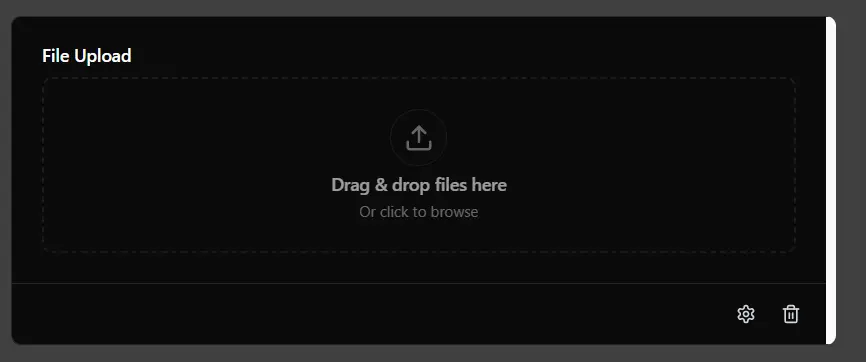
The File Upload field allows users to attach files to their form submissions. This is essential for collecting documents, images, or any other type of file required for your workflow.
Basic Configuration
The basic configuration allows you to set up the fundamental aspects of the file upload field.
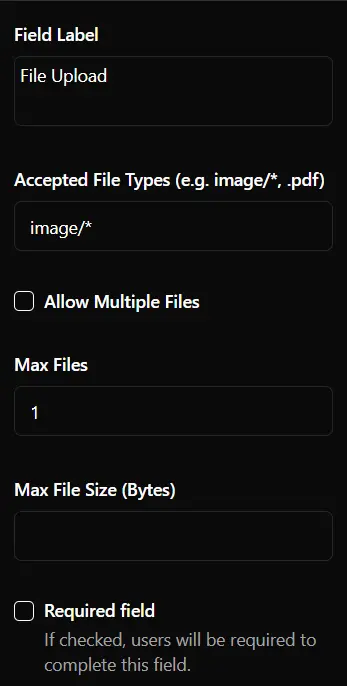
- Field Label: The text displayed above the upload area.
- Accepted File Types: Restrict uploads to specific file formats (e.g.,
.pdf,.jpg,.png). - Allow Multiple Files: Allow users to upload multiple files at once.
- Max Files: Limit the number of files a user can upload at once, the value should be between 1 and 10.
- Max File Size: Set a maximum size limit. The maximum file size allowed is 3072 MB (3GB).
- Required: Specifies if the user must upload a file to submit the form.
Settings
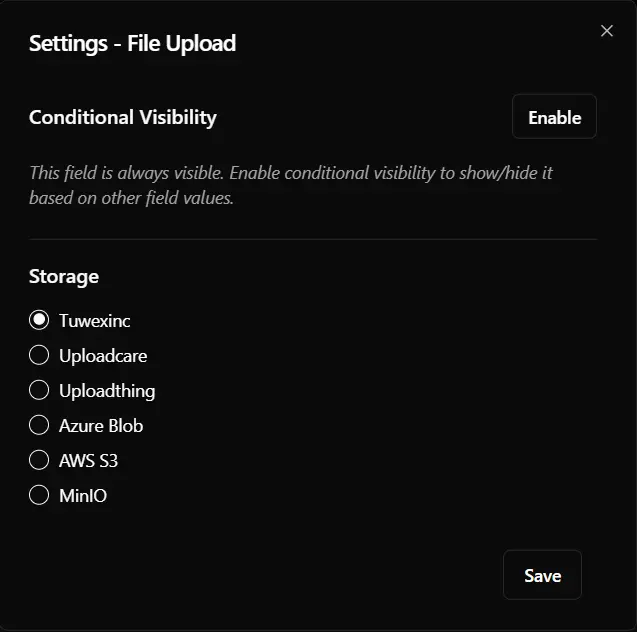
You can customize the file upload field’s behavior using conditional logic, displaying it based on values selected in other fields. You can also decide where uploaded files are stored by changing the storage provider.
Storage Providers
The File Upload field allows you to integrate with various storage providers to securely store and manage files according to your needs. By default, files are stored on Tuwexinc, a provider that is subject to certain usage limitations.
AWS S3
Integrate with Amazon S3 for cloud storage. AWS S3
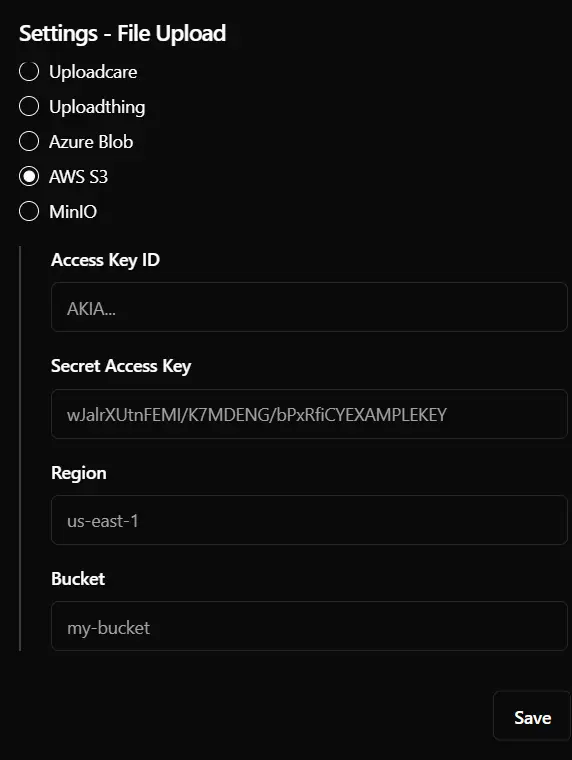
To configure AWS S3, you must provide the following credentials and settings:
- Access Key ID: The access key ID used to authenticate your AWS account.
- Secret Access Key: The secret access key associated with your Access Key. This value must be kept private.
- Region: The AWS region where your S3 bucket is located (for example, us-east-1 or eu-west-1).
- Bucket: The name of the S3 bucket where uploaded files will be stored.
MinIO
Connect to a MinIO instance for S3-compatible object storage. MinIO
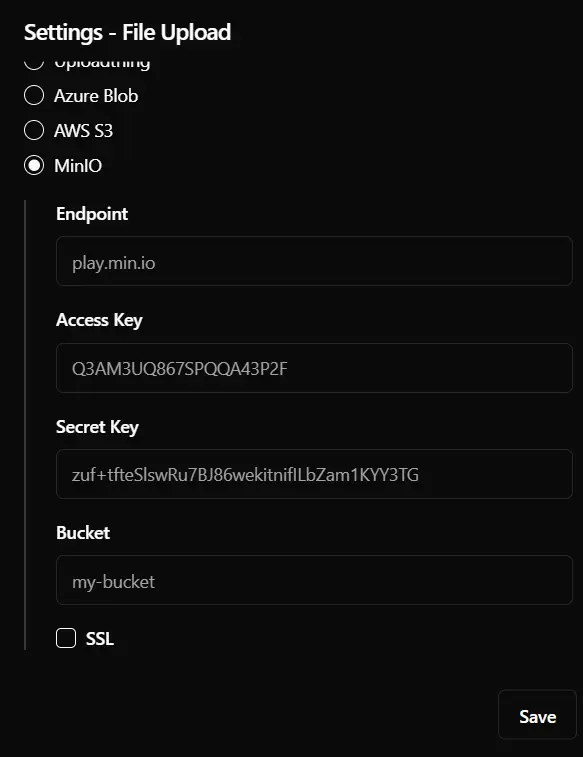
To configure MinIO, you must provide the following connection details:
- Endpoint: The URL of your MinIO server.
- Access Key: The access key used to authenticate with your MinIO instance.
- Secret Key: The secret access key associated with the Access Key.
- Bucket: The name of the bucket where uploaded files will be stored.
- SSL: Enable this option if your MinIO server requires a secure (HTTPS) connection.
Uploadcare
Integrate with Uploadcare for file handling. Uploadcare
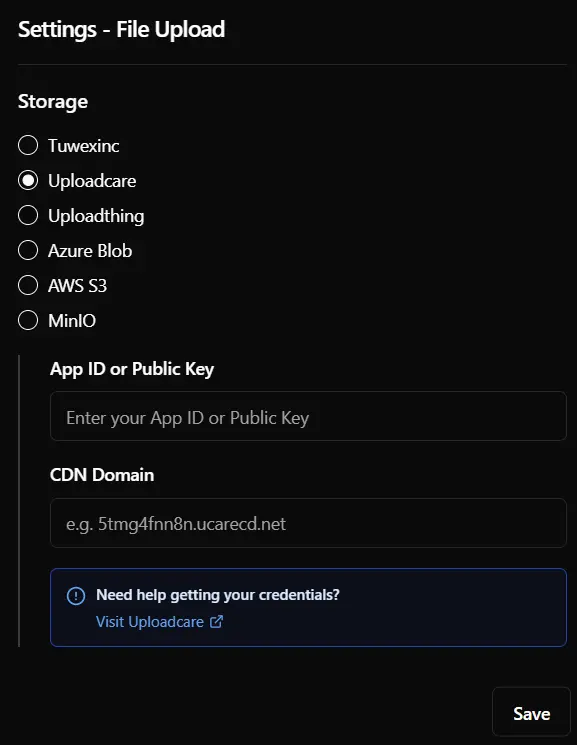
Uploadthing
Integrate with Uploadthing for file storage. Uploadthing
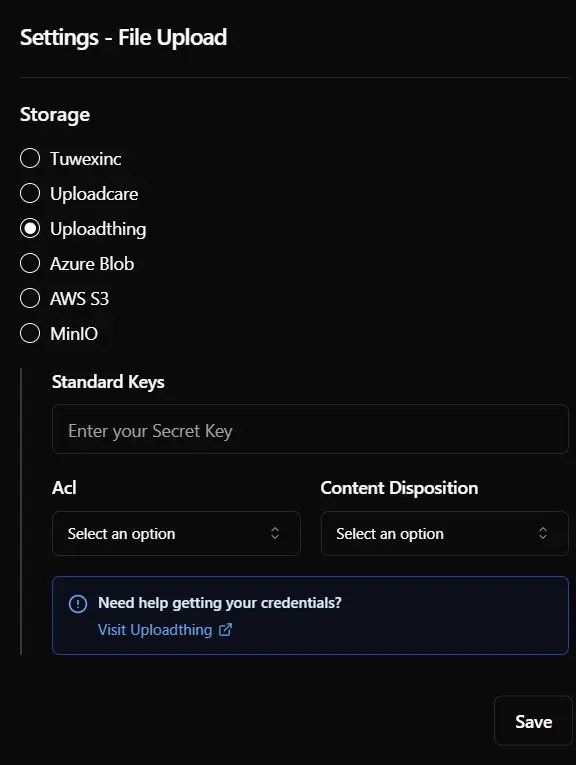
To configure Uploadthing, you must provide the following settings:
- Standard Key: The API key used to authenticate and connect your application to Uploadthing.
- ACL: Defines the access control level for uploaded files (for example, public-read or private).
- Content Disposition: Specifies how files should be presented when downloaded (for example, inline or attachment).
Azure Blob
Integrate with Azure Blob for file storage. Azure
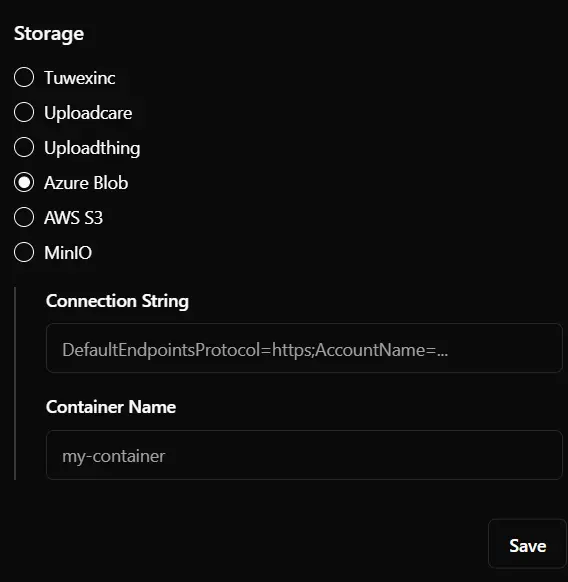
Connection string: The connection string used to authenticate and connect the application with the storage provider.
DefaultEndpointsProtocol=https;
AccountName=myaccount;
AccountKey=abc123xyz;
EndpointSuffix=core.windows.net
Container Name: The name of the container (bucket) where the files will be stored.
Preview
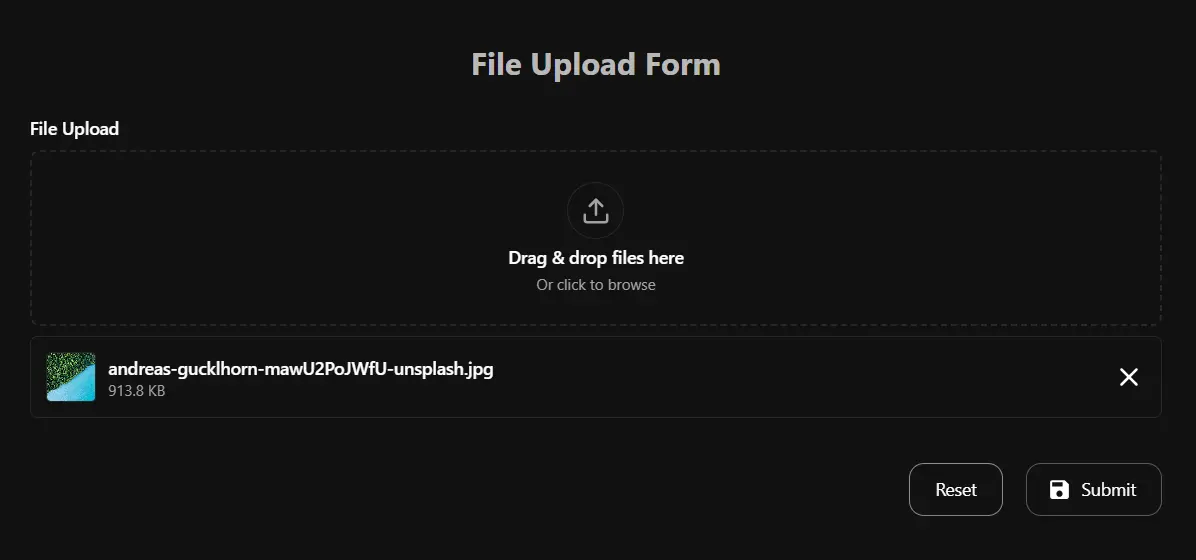
Here is how the File Upload field looks in your form when a user selects a file, the field updates to show the selected file details: